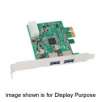
|
$10 rebate
[Exp. 04/15]
FREE SHIPPING
Tax in CA.
Improved taskbar and full-screen previews
The taskbar at the bottom of your screen is what you use to launch programs and switch between them when they're open. In Windows 7 you can pin any program to the taskbar so it's always just a click away, and you can rearrange the icons on the taskbar just by clicking and dragging.
Jump Lists
With Windows 7, we focused on keeping the things you use most right in front of you. One example: The new Jump List feature. It's a handy way to quickly reach the files you've been working with. To see the files you've used recently, just right click on the icon on your taskbar. So right-clicking on the Word icon will show your most recent Word documents. Plus, if there are other files you want to keep handy, you can just pin them to the Jump List so they'll always appear. That way, the documents you're likely to want are just a couple clicks away.
Desktop enhancements
With Windows 7, it's easier to do things you do all of the time. For example, before, when you wanted to compare two open windows, you had to manually resize your open windows to show them side by side. With Snaps, you can simply grab a window and pull it to either side edge of the screen to fill half the screen. Snap windows to both sides, and it's easier than ever to compare those windows.
Windows Search
Looking for a file, e-mail, or application? While you can easily look through folders and menus, there's an even faster way. Just click on the Start button and you'll see a search box at the bottom of the Start menu. Just enter a word or few letters in the name or file you want, and you'll get an organized list of results.
Windows 7 uses libraries to show all content of a particular type in one spot. Say you've got photos in several locations on your PC. A lot will be in your Photos folder. But you might have some in documents folders too. Your photos library makes it easy for you to browse and use all your photos, no matter where they are on your PC.
Internet Explorer 8
Available now, Internet Explorer 8 helps you do what you want online, faster. With innovations to the address bar, search, tabs, and the Favorites bar, Internet Explorer 8 brings you more information, with less effort.
HomeGroup
Today, you may have a network in your home that you use to share an internet connection. But it can be hard to share other things, like files and printers. Do you have one or more computers in your home but only one printer? If you're like most people, when you need to print a file that's on your laptop in your bedroom on the printer in your den, you probably e-mail the file from one PC to another or transfer it on a USB drive. And if you need to find a file but don't know which computer it's stored on, chances are you're in for a long night as you traipse from PC to PC and search each one.
View Available Network (VAN)
Windows 7 makes viewing and connecting to all of your networks simple and consistent. You'll always have one-click access to available networks, regardless of whether those networks are based on Wi-Fi, mobile broadband, dial-up, or your corporate VPN.
Use of this OEM System Builder Channel software is subject to the terms of the Microsoft OEM System Builder License. This software is intended for pre-installation on a new personal computer for resale. This OEM System Builder Channel software requires the assembler to provide end user support for the Windows software and cannot be transferred to another computer once it is installed. To acquire Windows software with support provided by Microsoft please see our full package "Retail" product offerings
|





 Homepage Popular Deals
 Discuss